
Visual Studio Integration
CodeSmith Generator integrates with Visual Studio 2022 (version 17), so you can browse, edit and run templates without leaving your solution. Generator's tool windows and commands are on the Generator menu in Visual Studio.
Note
The Visual Studio integration installs into Visual Studio 2022 only, not into later versions of Visual Studio. Generator Server doesn't include it.
Keyboard shortcuts
| Shortcut | Command |
|---|---|
| Ctrl+Alt+G, Ctrl+Alt+E | Open Template Explorer |
| Ctrl+Alt+G, Ctrl+Alt+G | Expand ActiveSnippet |
| Ctrl+Alt+G, Ctrl+Alt+U | Output ActiveSnippet usage |
Template Explorer
To open Template Explorer, select Generator > Template Explorer. It opens as a tool window that you can dock or float like any other Visual Studio tool window, and it works the same way as the standalone Template Explorer.
Template Editor
The Template Editor is built into Visual Studio. It gives you IntelliSense and statement completion, documentation comments, Go To Definition and more, so you can work on templates as productively as on any other code.
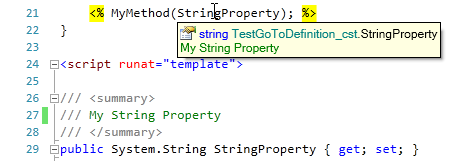
Go To Definition takes you straight to an identifier's definition via the Object Browser.

Schema Explorer and Map Editor
Schema Explorer and the Map Editor are also on the Generator menu, along with Manage Data Sources.
Generator projects
You can add Generator projects (.csp files) to your Visual Studio projects. Right-click a project file in Solution Explorer to manage or generate its outputs, or set its build action to Generate so its outputs are regenerated every time you build.
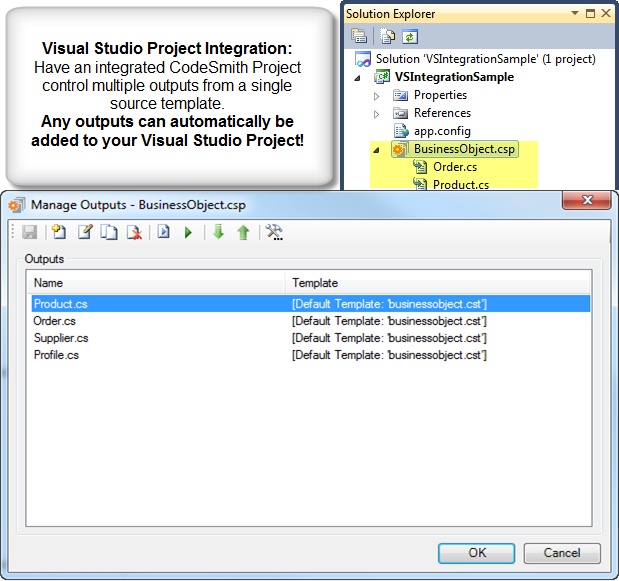
ActiveSnippets
ActiveSnippets work like Visual Studio code snippets, but they run a full Generator template and can use rich metadata such as database schema and XML. Type the snippet's alias and its arguments in the code editor, then press Ctrl+Alt+G, Ctrl+Alt+G or select Generator > Expand ActiveSnippet.