
Using ActiveSnippets
ActiveSnippets are CodeSmith Generator templates that you run with a few keystrokes inside the Visual Studio code editor. The output is inserted right where you expand the snippet.
Visual Studio's own code snippets are the best choice for simple code without any logic, such as an empty property. ActiveSnippets are for code that needs logic or rich metadata:
- An ActiveSnippet has access to the whole .NET Framework, SchemaExplorer, XML properties, your own assemblies and any other metadata.
- Complex types, such as SchemaExplorer types and XML properties, can be template properties, and so can be ActiveSnippet arguments.
- An ActiveSnippet can set default values for arguments that rarely change.
Commands and shortcuts
The ActiveSnippet commands are on the Generator menu in Visual Studio.
| Command | Shortcut | What it does |
|---|---|---|
| Expand ActiveSnippet | Ctrl+Alt+G, Ctrl+Alt+G | Runs the ActiveSnippet on the current line and inserts its output. |
| Output ActiveSnippet Usage | Ctrl+Alt+G, Ctrl+Alt+U | Shows how to call your ActiveSnippets in the Output window. |
| ActiveSnippet Configuration | Opens the dialog where you add, edit and remove ActiveSnippets. |
Creating an ActiveSnippet
1. Write the template
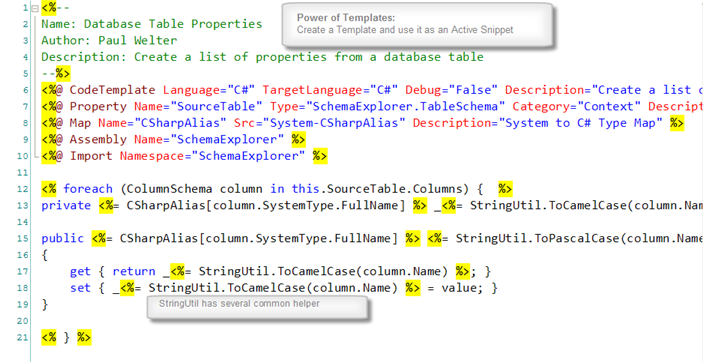
An ActiveSnippet starts as an ordinary template. In this example, the template generates a C# field and property for every column of a table (a TableSchema).
Tip
This template is included with Generator. In Template Explorer, look in the ActiveSnippets\CSharp or ActiveSnippets\VisualBasic folder. To learn how to write templates, see Writing your first template.
For every column, the output must look like this:
private int _orderId;
public int OrderId
{
    get { return _orderId; }
    set { _orderId = value; }
}
Write the template in small steps rather than all at once. It helps to outline the steps first in pseudocode. This template:
- Iterates through the
Columns(SchemaExplorer.ColumnSchemaCollection) of theSourceTable(SchemaExplorer.TableSchema) property. - Creates a field and a property for each column.
- Uses a Generator map to get the right type for the field and property.
- Makes the field name camel case and the property name Pascal case.
Finally, make sure the template compiles and runs in the Template Editor or Template Explorer.
2. Configure the ActiveSnippet
Before you can use a template as an ActiveSnippet, you must add it in Visual Studio. Select Generator > ActiveSnippet Configuration, then add the template and give it an alias. See ActiveSnippet configuration.
Expanding an ActiveSnippet
- In the code editor, type the ActiveSnippet's alias or name, followed by its arguments.
- Press Ctrl+Alt+G, Ctrl+Alt+G, or select Generator > Expand ActiveSnippet.
Generator reads the current line and looks for an ActiveSnippet with that alias or name. If it finds one, it compiles the template if needed, runs it with your arguments, and inserts the output in the editor where you expanded the snippet.
For example, this line runs the ActiveSnippet with the alias tp and passes it one argument:
tp Petshop.dbo.Orders
- You can use an ActiveSnippet's full name instead of its alias.
- You can pass complex objects, such as a
TableSchema, by their fully qualified name, herePetshop.dbo.Orders.
If something goes wrong
-
If the ActiveSnippet fails to run, Generator shows its usage information, with the ActiveSnippet's arguments. For example:
Template is not valid. SourceTable is required. tp - TableProperties (.cs) -
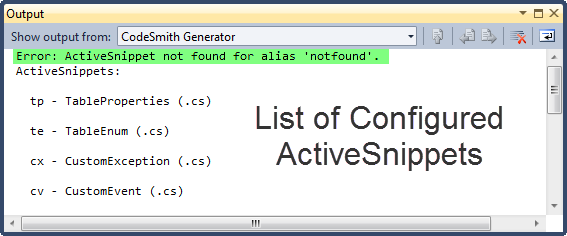
If Generator can't find an ActiveSnippet with that alias or name, it lists all of the available ActiveSnippets in the Output window.
Showing ActiveSnippet usage
To see how to call your ActiveSnippets, select Generator > Output ActiveSnippet Usage, or press Ctrl+Alt+G, Ctrl+Alt+U. Generator reads the current line and shows the matching usage information in the Output window.
- If the line has no alias, all ActiveSnippets are listed.
- If the line has the start of an alias, all ActiveSnippets that start with it are listed. For example,
tlists every ActiveSnippet that begins with "t".