
Executing Templates
To execute a template from Template Explorer, do one of the following:
- Double-click the template.
- Right-click the template and select Execute.
- Drag the template from Template Explorer and drop it on any application that supports drag-and-drop. The code is generated where you drop the template.
Each of these opens the template's property sheet.
Setting properties
The property sheet shows every property you can set for the template.
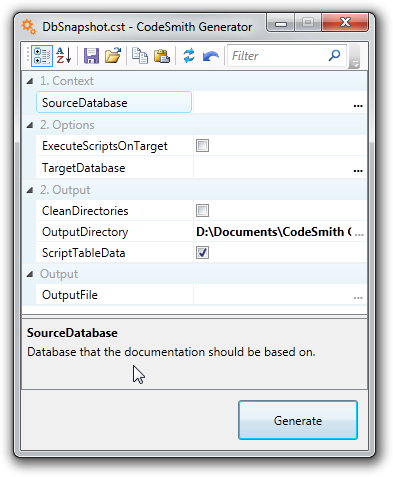
- Required and optional properties: you must supply a value for every required property before Generator can generate code. Properties can also have default values.
- Entering values: depending on how the template defines a property, you type a value, pick one from a list, or click the builder button (...) to open a dialog that helps you choose a value.
- Descriptions: when you select a property, its description appears at the bottom of the property sheet.
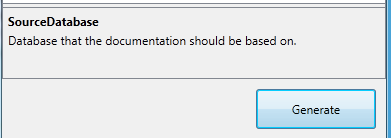
For example, when you select the SourceDatabase property, a builder button appears on the right of the property sheet. Click it to open a dialog, supplied by Generator's SchemaExplorer metadata library, where you pick the database.

The property sheet also has a toolbar for sorting, filtering, saving and loading property values. See Property sheet toolbar.
Generating code
When you've set the properties, click Generate at the bottom of the property sheet. Generator combines your property values with the template to create the code. Depending on the template, the code is either shown in an output window or written to files, for example in the folder set by an OutputDirectory property.
Working with the output window
When a template's output is shown in an output window, you can edit the generated code there before you keep it. The output window has its own toolbar:
| Button | Name | What it does |
|---|---|---|
 |
Copy to Clipboard | Copies the current document to the Windows clipboard. |
 |
Save to File | Opens a Save As dialog so you can save the current document to a file. |
Tip
To run the same template with the same settings again, or from anywhere else, save its property values in a Generator project.