
Using master templates
Sub-templates let you organize a complex code generation process from a master template. Just as subroutines let a program call bits of logic from its main flow, sub-templates let a master template call bits of code generation logic. A common pattern is a master template that renders one sub-template per output file.
To use a sub-template:
- Register the sub-template in the master template.
- Optionally, merge its properties into the master template's property grid.
- Create an instance and set its properties, or copy them from the master template.
- Render the sub-template to the master template's output or to a file.
The example at the end of this page puts all the steps together. You can also watch the Master Templates video.
Registering sub-templates
To register a sub-template, add a Register directive to the master template. A master template can have as many Register directives as you like, and sub-templates can be nested.
<%@ Register Name="Header" Template="Header.cst" MergeProperties="True" ExcludeProperties="IncludeMeta" %>
Register directive attributes
| Attribute | Description | Required |
|---|---|---|
Name |
The type name of the sub-template in the master template. Use it to create instances of the sub-template. | Yes |
Template |
The relative path to the sub-template. | Yes |
MergeProperties |
Whether the sub-template's properties are added to the master template's properties. | No, defaults to False |
ExcludeProperties |
A comma-delimited list of properties not to merge into the master template's properties. You can use * as a wildcard. |
No |
Merging properties into the master template
To show a sub-template's properties in the master template's property grid, set MergeProperties="True" in the sub-template's Register directive. You can then collect every property the whole code generation process needs on a single property grid.
<%@ Register Name="SubTemplate" Template="SubTemplate.cst" MergeProperties="True" %>
Use ExcludeProperties to leave out properties that the master template sets itself.
Setting properties in a sub-template
A sub-template's properties are properties of the sub-template object, so you set them like any other property. Create the instance with Create<T>, using the name from the Register directive:
// instantiate the sub-template
Header header = this.Create<Header>();

// include the meta tag
header.IncludeMeta = true;
Here, IncludeMeta is a Boolean property declared with a Property directive in the sub-template.
Copying properties from the master template
Master templates and sub-templates often share properties. For example, in a set of database templates, each template might declare a string property named Server. When the user fills in that property for the master template, only the master template's copy gets the value.
To pass the values on, call the master template's CopyPropertiesTo method. It matches properties of the master template and the sub-template by name and type, and copies each exact match to the sub-template:
// instantiate the sub-template
Header header = this.Create<Header>();

// copy all properties with matching name and type to the sub-template instance
this.CopyPropertiesTo(header);
Rendering a sub-template
After you register a sub-template and set its properties, render it. To render it into the master template's output:
// instantiate the sub-template.
Header header = this.Create<Header>();
// render the sub-template to the current output stream.
header.Render(this.Response);
To render it to a separate file, use RenderToFile. This is how you create several output files in one code generation run:
// instantiate the sub-template.
Header header = this.Create<Header>();
// render the sub-template to a separate file.
header.RenderToFile("Somefile.txt");
RenderToFile has overloads that give you more control. This one doesn't overwrite an existing file:
// instantiate the sub-template.
Header header = this.Create<Header>();
// render the sub-template to a separate file.
// NOTE: If the file exists then an exception will be thrown.
header.RenderToFile("Somefile.txt", false);
Other overloads let you:
- Use a merge strategy to control how the output is merged with the existing file's content.
- Pass a file path or an
OutputFileto name the file that the output is dependent upon in a Visual Studio project.
Tip
If the master template only renders sub-templates to files and has no output of its own, set OutputType="None" in its CodeTemplate directive.
Example
This example generates an HTML file from two templates. The sub-template, Header.cst, generates the HTML header:
<%@ CodeTemplate Language="C#" TargetLanguage="HTML" %>
<%@ Property Name="Title" Type="System.String" Optional="False" Category="Options" Description="Page title." %>
<%@ Property Name="CharSet" Type="System.String" Optional="False" Default="windows-1252" Category="Options" Description="Character set for the page." %>
<%@ Property Name="IncludeMeta" Type="System.Boolean" Default="True" Optional="False" Category="Options" Description="Include meta tags." %>
<html>
<head>
<% if (IncludeMeta) { %>
<meta http-equiv="Content-Type" content="text/html; charset=<%= CharSet %>">
<% } %>
<title><%= Title %></title>
</head>
The master template generates the body of the page and uses the sub-template for the header:
<%@ CodeTemplate Language="C#" TargetLanguage="HTML" %>
<%@ Property Name="Title" Type="System.String" Optional="False" Category="Options" Description="Page title." %>
<%@ Property Name="Placeholder" Type="System.String" Optional="True" Category="Options" Description="Main placeholder text." %>
<%@ Register Name="Header" Template="Header.cst" MergeProperties="True" ExcludeProperties="IncludeMeta" %>
<% OutputHeader(); %>
<body>
<h1><%= Title %></h1>
<p><%= Placeholder %></p>
</body>
</html>
<script runat="template">
public void OutputHeader()
{
   Header header = this.Create<Header>();
   // include the meta tag
   header.IncludeMeta = true;
   // copy all properties with matching name and type to the sub-template instance
   this.CopyPropertiesTo(header);
   // render the sub-template to the current output stream
   header.Render(this.Response);
}
</script>
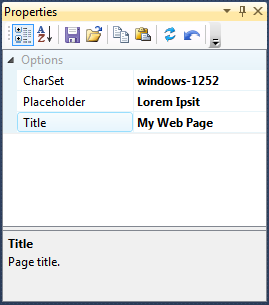
When you open the master template, its property grid shows its own Title and Placeholder properties and the sub-template's CharSet property (because of MergeProperties), but not IncludeMeta (because of ExcludeProperties):
The output combines the sub-template's output with the master template's:
<html>
<head>
<meta http-equiv="Content-Type" content="text/html; charset=windows-1252">
<title>My Web Page</title>
</head>
<body>
<h1>My Web Page</h1>
<p>Lorem Ipsit</p>
</body>
</html>