
Configuring business object types
You can change how a business object behaves by changing its type. In this step, you make the Category business object act as both a parent and a child object, by changing its type from EditableRoot to SwitchableObject.
You configure the business object type of each entity in Manage Outputs:
-
In Solution Explorer, right-click
Entities.cspand select Manage Outputs. -
Double-click the
Entities.cstoutput. The Edit Output dialog lets you control exactly what gets generated.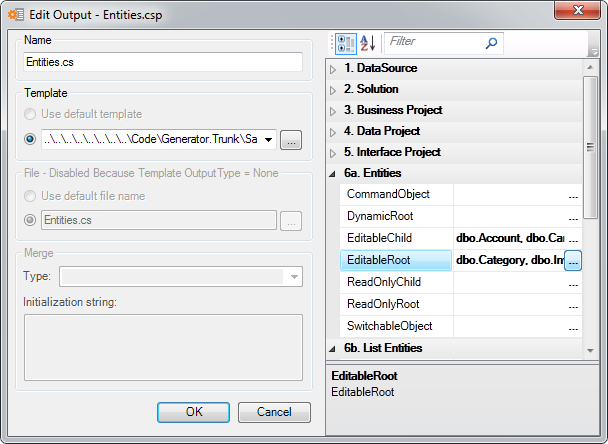
-
Click the ... button of the
SwitchableObjectproperty. Hold down Ctrl to select more than one item, and selectCategory.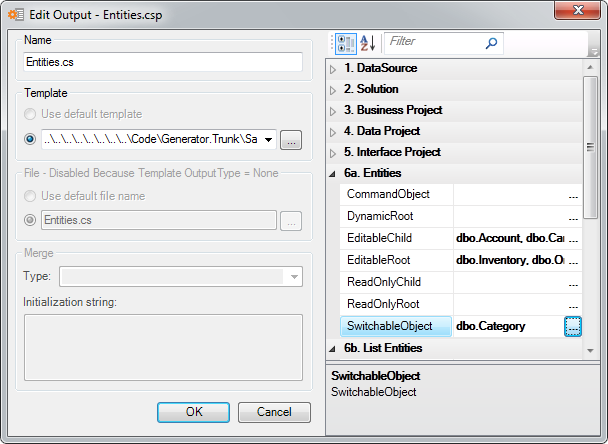
The
Categorytable moves fromEditableRoottoSwitchableObject.Note
The Entities template knows you might want both an editable object and a read-only object for the same table. When you pick a read-only type for a table that already has an editable type (or the other way around), it keeps the previous choice, and you get two business objects.
-
Click OK to save your settings.
When you regenerate the project, Category is generated as a SwitchableObject.
Tip
To change a setting at any time, go back to the Edit Output dialog. You can change business object types, the data access implementation and much more. See the Entities template properties.
Next, generate business objects from views and stored procedures: Generating from views and stored procedures.