
Using Template Explorer
Template Explorer is where you organize and run CodeSmith Generator templates. Just as File Explorer sorts your files into folders, Template Explorer sorts templates into folders so you can quickly find the ones you want to work with.
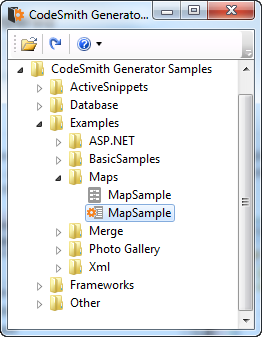
Opening Template Explorer
You can use Template Explorer in two places:
- In Visual Studio: select Generator > Template Explorer, or press Ctrl+Alt+G, Ctrl+Alt+E. See Visual Studio integration.
- On its own: start CodeSmith Generator Explorer from the Windows Start menu. Generator Explorer is a standalone window that hosts Template Explorer.
Toolbar
| Button | Name | What it does |
|---|---|---|
 |
Create a template folder shortcut | Opens a Browse for Folder dialog. Select any folder on your computer and click OK to add it as a top-level folder in Template Explorer. After installation, Template Explorer has a single shortcut to the sample templates. |
 |
Toggle Top Most Window Mode | Keeps Generator Explorer on top of all other windows, even when another window has the focus. This is useful when you generate code by dragging templates onto another application. |
 |
About CodeSmith | Shows the version and licensing information for your copy of Generator. |
In this section
- Managing the folder tree: select and expand folders, create templates, projects and maps, and open templates for editing.
- Executing templates: set a template's properties, generate code and work with the output window.