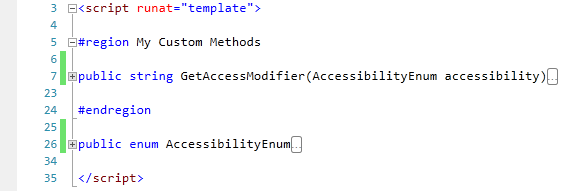
Outlining
Outlining lets you hide parts of your code until you need them.
There are two kinds of outlining:
- Automatic: by default, the Template Editor creates an outline block for every script block, property, enumeration and object in your code. You can turn automatic outlining off from Edit > Outlining.
- Manual: add
#regionand#endregionlines (in Visual Basic,#Regionand#End Region) around any code.
To collapse or expand an outline block, click the minus or plus sign in the left margin, or place the cursor in the block and press Ctrl+M.
Example
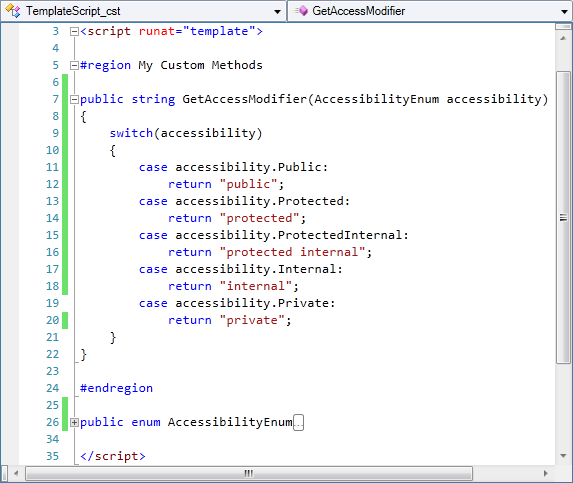
In this code, the Template Editor has created outline blocks for the script block and the method, and the developer has added a region:
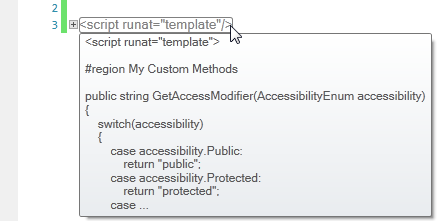
Collapsing the script block hides it and shows it grayed out. Point at the collapsed block to see a tooltip with its first few lines:
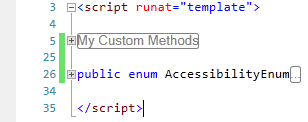
Expanding the script block and collapsing the region shows the text after the #region keyword:
Expanding the region and collapsing the method shows the method's name: