Getting started
You can generate a complete PLINQO for Entity Framework solution from your database in three steps.
Step 1: Install CodeSmith Generator
Download and install CodeSmith Generator.
Note
If you don't own a Generator license, register on the CodeSmith Tools website to get a trial key.
Step 2: Download PLINQO EF
PLINQO EF isn't installed with Generator. Download it from GitHub:
- Download
PLINQO-Entity.Framework-1.3.zipfrom the PLINQO for Entity Framework 1.3 release. - Unblock the
.zipfile before you extract it. - Extract it with Windows Explorer or a tool such as 7-Zip into its own folder under
Documents\CodeSmith Generator\Templates, for exampleDocuments\CodeSmith Generator\Templates\PLINQO-EF. Template Explorer showsDocuments\CodeSmith Generator\Templatesas My Templates. - Open Template Explorer, and open the folder you extracted PLINQO EF into.
Step 3: Run the QuickStart
-
Double-click
QuickStart.cstto execute the template. -
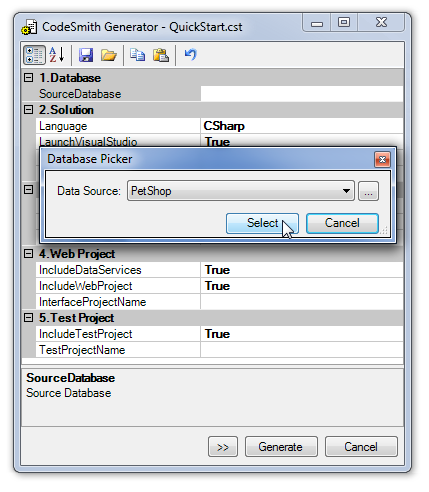
Select the SourceDatabase property, then click its ... button.
-
In the Database Picker dialog, choose your database and click Select. If your database isn't in the list, click ... to add it.
-
The QuickStart fills in the other properties from the database name. Change any you need to, then click Generate.
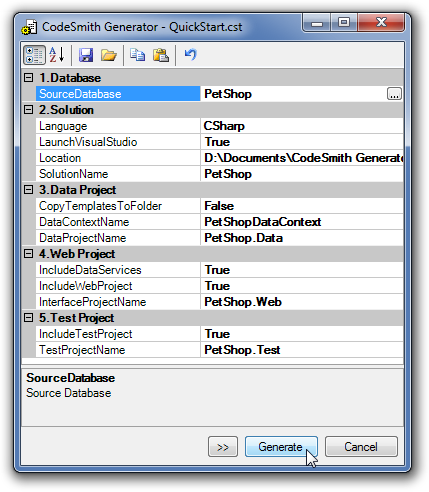
The QuickStart creates a Visual Studio solution and opens it in Visual Studio.
Troubleshooting
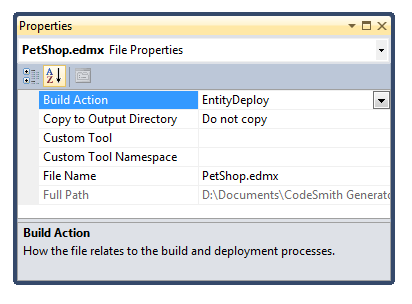
If your web browser shows the error Unable to load the specified metadata resource, check the generated EDMX file's Build Action in Visual Studio. It must be set to EntityDeploy.