
Using the Map Editor
CodeSmith Generator maps are dictionaries for lookups in your templates, such as translating a type from one system into another. Maps reduce the amount of plumbing code in templates and make them easier to read and reuse.
Generator ships with maps for the most common scenarios, and the Map Editor makes it easy to create and manage your own. Maps are stored as XML files with a .csmap extension, so they're easy to share.
Opening the Map Editor
Open the Map Editor from the Generator menu.
Map Editor window
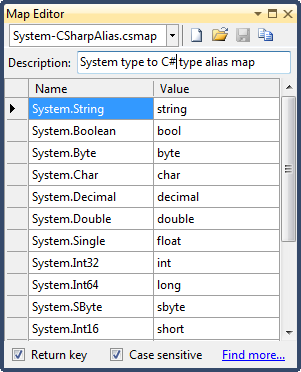
| Element | What it does |
|---|---|
 Name Name |
The map's name, which is also its file name, so choose a name that describes what the map is for. Use this list to view and edit existing maps. Select (New File) to create a new map. |
 New File New File |
Creates a new map file. |
 Open File Open File |
Opens a map file from anywhere on your computer. |
 Save Copy Save Copy |
Creates a copy of the current map file. |
| Description | Describes what the map is for. |
| Return Key | Returns the original key when the key isn't found in the map, instead of null. |
| Case Sensitive | Matches keys case-sensitively. Word dictionaries often don't need this, because most of their keys are unique by name. |
For example, the map above converts a fully qualified .NET type to its C# keyword. Some types, such as System.DateTime and System.Guid, have no C# keyword. With Return Key checked, looking up System.DateTime returns System.DateTime, which is still valid C#.
Note
When you refer to a map by name, Generator looks for it in the template's folder and in the Generator Maps folder (Documents\CodeSmith Generator\Maps). You can also give a relative or full path.
In this section
- Developing using a Generator map: use maps in templates with the Map directive or the API, with a worked example.