
Using a Generator Project inside Visual Studio
You can manage any CodeSmith Generator project from Visual Studio, so code generation stays part of your normal workflow and you don't have to switch applications.
Creating a Generator project
-
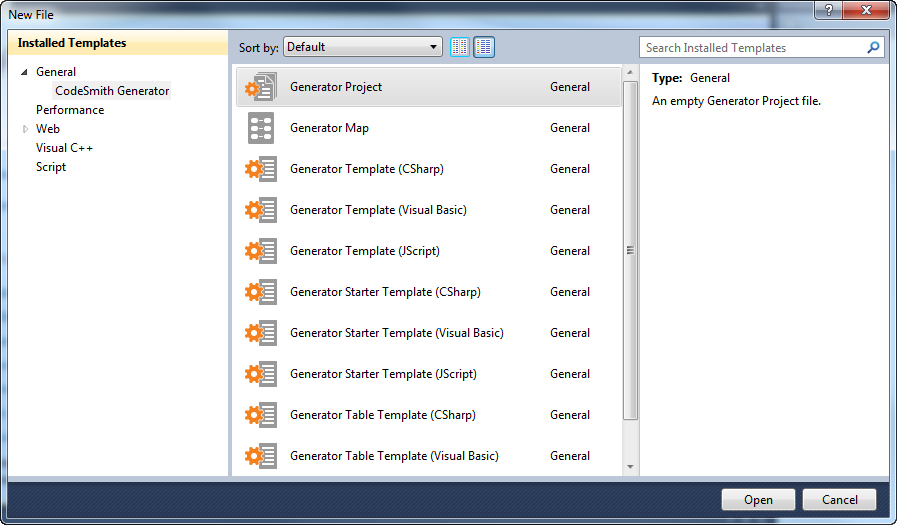
In Solution Explorer, right-click a project, or a folder in a project, and add a new item.
-
In the dialog, select the CodeSmith Generator category to show only the Generator item templates.
-
Select Generator Project, then click Open, or double-click Generator Project.
Managing a Generator project
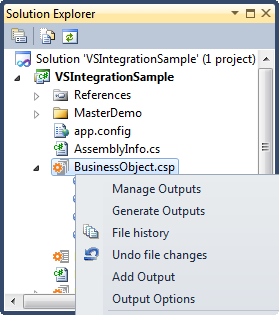
Right-click a project file (.csp) in Solution Explorer to manage it.
| Command | What it does |
|---|---|
| Manage Outputs | Opens the Manage Outputs dialog. |
| Generate Outputs | Generates all of the outputs in the project. |
| Add Output | Adds a new output. See Adding and editing outputs. |
| Output Options | Controls what happens to the outputs after generation. Available only in Visual Studio. |
Output options
| Option | What it does |
|---|---|
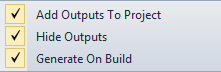
| Add Outputs To Project | Adds the project's outputs to your Visual Studio project. |
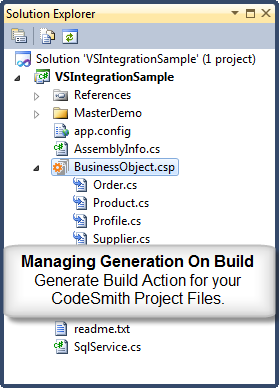
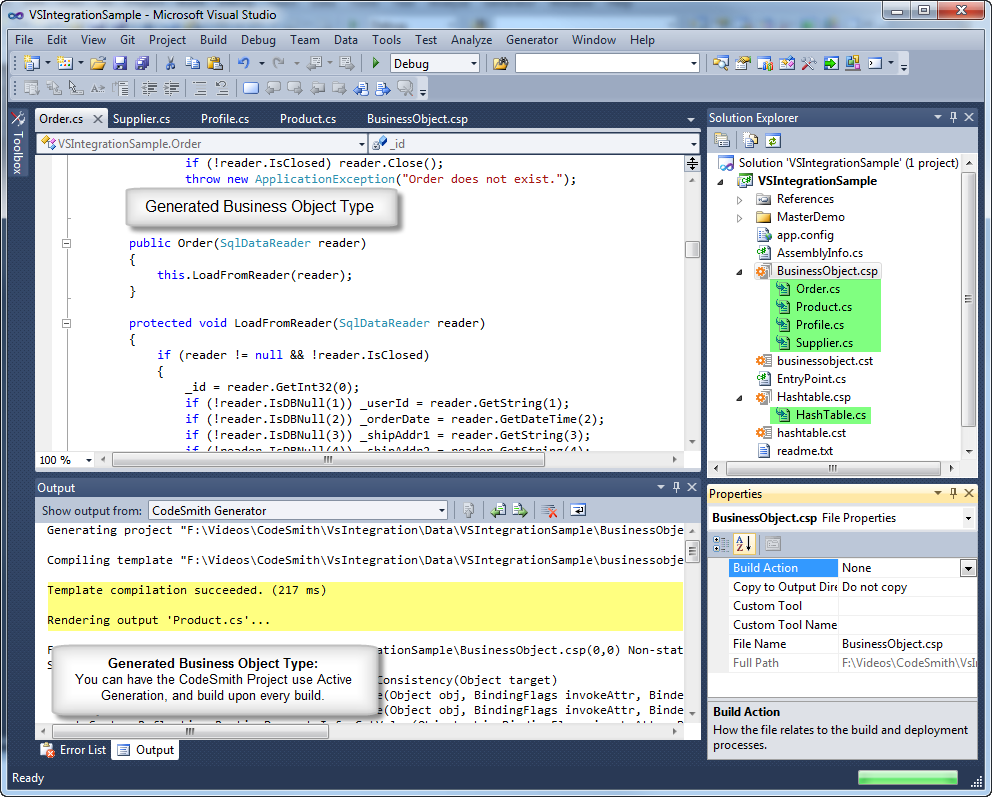
| Hide Outputs | Nests the outputs under the Generator project file in Solution Explorer, as shown below. You can collapse the nested files, which also discourages other developers from editing generated code. |
| Generate On Build | Regenerates the outputs every time you build. This is the same as setting the project file's build action to Generate; see Generating on build. |
Note
Turning off Generate On Build also removes the Generator dependencies from your Visual Studio project.
Generating on build
To regenerate a Generator project's outputs every time you build, set the project file's Build Action to Generate in the Properties window. The whole generation process then runs before your project builds, and the outputs can be included in your Visual Studio project.
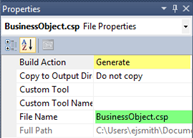
For example, a class library contains a BusinessObject.csp project with four outputs, all generated from the same BusinessObject.cst template:
Order.csProduct.csProfile.csSupplier.cs
With the build action set to Generate, any change you make to the database schema, XML metadata or template is picked up the next time you build. This saves you from updating every class by hand during development.
Generation feedback
The Output window shows the generation messages before the build starts, as shown below.
Nesting generated files under a parent file
A template can nest a generated file under another file in Solution Explorer, as in Visual Studio's DependentUpon hierarchy. In the example below, Order.generated.cs is nested under Order.cs.
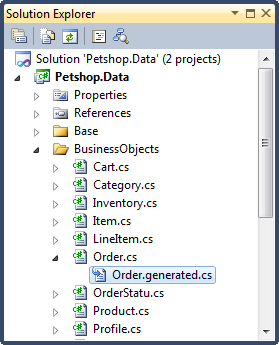
To do this, call the RenderToFile overload that takes a parent file. Generator adds metadata to the output file that Visual Studio uses to create the hierarchy. Then add the Generator project to your Visual Studio project and generate its outputs; Generator adds the outputs to your project with the hierarchy.
// Create the sub-templates. Create<T>() wires everything up automatically.
EntityGeneratedClass entityClass = this.Create<EntityGeneratedClass>();
EntityEditableClass partialClass = this.Create<EntityEditableClass>();

string className = type.Name;

string parentFileName = className + ".cs";
parentFileName = Path.Combine(OutputDirectory, parentFileName);
// Output the parent file
partialClass.RenderToFile(parentFileName, false);

string fileName = className + ".Generated.cs";
fileName = Path.Combine(OutputDirectory, fileName);
// Output the child (dependent) file, linked to the parent
entityClass.RenderToFile(fileName, parentFileName, true);
Setting the build action of generated files
When a template generates files into a Visual Studio project, you may want to set a generated file's build action. For example, an EDMX file should always have the build action EntityDeploy.
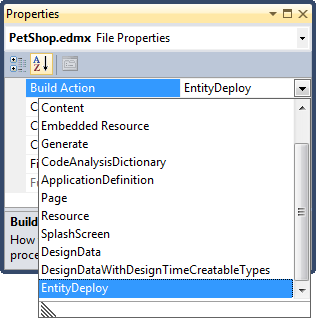
To do this in your template:
- Create an
OutputFilefor the file you're generating. - Add the build action to its
Metadatadictionary.
OutputFile output = new OutputFile("PetShop.edmx");
output.Metadata.Add("BuildAction", "EntityDeploy");
this.RegisterOutput(output);
Then make sure the build action is applied, in one of two ways:
- If your template is a sub-template that generates the file's content itself, call the template's
RegisterOutputmethod, as shown above. - If you call
RenderToFileon a template, use theRenderToFileoverload that takes anOutputFile. See theCodeTemplatemembers in the API documentation.