
Test the final result
Now that you've written the template, test it.
-
Build the template so that CodeSmith Generator shows the right properties in the Properties window. Click Build on the toolbar or press Ctrl+Shift+B. If the template has no errors, the Output window shows progress messages like these:
---------------- Compile started -----------------
Build complete -- 0 errors, 0 warnings
---------------------- Done ----------------------
Compile succeeded
If the template has errors, they appear in the Output window.
-
In the Properties window, set the three enumerated properties: ExecuteAs, IsolationLevel and JsonMode. Generator shows a drop-down list of the valid choices for each one.
-
Click the
SourceTableproperty value, then click the builder button (...) to open the Table Picker dialog.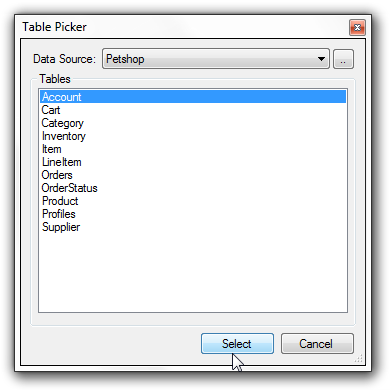
-
Select the data source, and the table in that data source to use with the template. To create a new data source, click the builder button next to Data Source.
-
Click Select to return to the editor.
-
Click Generate on the toolbar or press F5 to run the template. Generator generates the output and shows it so you can save or copy it.
-
Run the generated script against the database (for example, in SQL Server Management Studio), then run the procedure, such as
EXEC Person.GetAddressTypeJson, to see the table as JSON.