
Configuring and troubleshooting a Schema Provider
CodeSmith Generator reads database metadata through schema providers. Generator ships with providers for SQL Server, OLE DB (ADOX), Oracle, MySQL, PostgreSQL, SQLite, SQL Server Compact, VistaDB, DB2 for iSeries and SQL Anywhere. This page helps you connect with them, configure them, and fix the most common errors.
Important
Generator is built for Any CPU, so on 64-bit Windows it runs as a 64-bit process, both on its own and inside Visual Studio. Database client libraries must match: install the 64-bit version of any client library a schema provider depends on. A BadImageFormatException usually means the bitness doesn't match.
Creating a connection string
Before you continue, read Adding a data source.
When you add a data source, the Data Source dialog checks whether the schema provider has a connection string designer. If it does, click the … button to build the connection string. If it doesn't, type a connection string in the Connection String box, in the format the provider expects:
| Schema provider | Connection string format |
|---|---|
| SqlSchemaProvider | SqlConnection.ConnectionString |
| ADOXSchemaProvider | OLE DB connection string |
| OracleSchemaProvider | See Oracle below. |
| PostgreSQLSchemaProvider | See PostgreSQL below. |
For any provider, ConnectionStrings.com is a good reference for connection string formats.
Configuring a schema provider's behavior
Some schema providers have settings that change how they work. For example, the Oracle schema provider can show only the schema objects that belong to the logged-in user, and can be allowed to read result set information for commands (CommandResultSchema).
You change these settings in the Schema Provider section of the Options dialog, which has a page for each configurable provider.
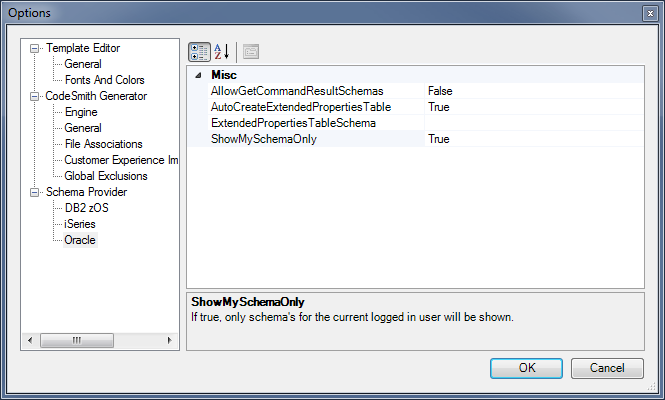
Oracle
The Oracle schema provider uses the .NET Framework's Oracle data provider, which needs the Oracle client software on your computer.
Connecting to an Oracle database
-
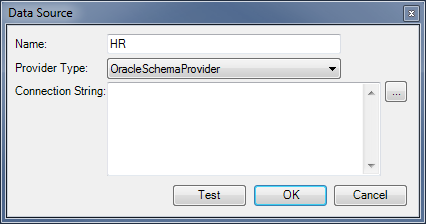
Add a new data source, and select OracleSchemaProvider in the Provider Type list.
-
Click the … button to build the connection string, or type one in the Connection String box.
-
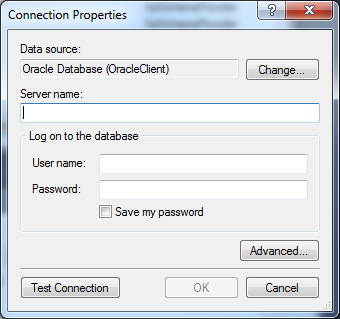
Enter the server name and your credentials, then click Test Connection or OK.
If you can't connect this way, use a TNS-less connection string. It describes the server in the same format as a tnsnames.ora file, but doesn't need that file on your computer. The Connection Properties dialog can't build it, so type it in the Connection String box of the Data Source dialog:
Data Source=(DESCRIPTION=(ADDRESS_LIST=(ADDRESS=(PROTOCOL=TCP)(HOST=MyHost)(PORT=MyPort)))(CONNECT_DATA=(SERVER=DEDICATED)(SERVICE_NAME=MyOracleSID)));User Id=myUsername;Password=myPassword;
For more formats, see Oracle connection strings.
Fixing a BadImageFormatException
If the Oracle schema provider throws a BadImageFormatException, the Oracle client libraries are missing or don't match Generator's bitness. To fix it:
- Download the 64-bit Oracle client, either the Oracle Data Access Components (ODAC) or the Oracle Instant Client.
- Install it.
- Restart your computer.
MySQL
The MySQL schema provider works with any version of MySQL Connector/NET, because it loads the MySQL data provider through .NET's DbProviderFactories by its invariant name, MySql.Data.MySqlClient. If that provider isn't installed and registered, you get an error like "Unable to find the requested .Net Framework Data Provider. It may not be installed."
Installing MySQL Connector/NET
- Download and install MySQL Connector/NET.
- Restart your computer.
Registering MySQL Connector/NET
If the error persists, register the provider yourself:
-
Open each .NET Framework 4
machine.configfile in a text editor running as administrator:%windir%\Microsoft.NET\Framework\v4.0.30319\Config\machine.config%windir%\Microsoft.NET\Framework64\v4.0.30319\Config\machine.config
-
Add the MySQL provider to the
DbProviderFactorieselement. ReplaceX.X.X.Xwith the version of MySQL Connector/NET you installed:<system.data> <DbProviderFactories> <add name="MySQL Data Provider" invariant="MySql.Data.MySqlClient" description=".Net Framework Data Provider for MySQL" type="MySql.Data.MySqlClient.MySqlClientFactory, MySql.Data, Version=X.X.X.X, Culture=neutral, PublicKeyToken=c5687fc88969c44d" /> </DbProviderFactories> </system.data> -
Save the files and restart Generator.
SQLite
If the SQLite schema provider shows the error "The System.Data.SQLite library is not installed on this computer", System.Data.SQLite either isn't installed or isn't registered. System.Data.SQLite isn't installed with Generator. Like the MySQL provider, the SQLite provider loads its data provider through DbProviderFactories, using the ADO.NET provider registration named System.Data.SQLite, so it works with any version. Generator doesn't use Microsoft.Data.Sqlite.
To set it up:
-
Download the 64-bit .NET Framework setup of System.Data.SQLite. Generator runs as a 64-bit process, and so does Visual Studio 2022.
-
Run the setup. When it asks, choose to install the assemblies into the global assembly cache.
-
Register the provider, if the setup didn't. Open each .NET Framework 4
machine.configfile in a text editor running as administrator:%windir%\Microsoft.NET\Framework\v4.0.30319\Config\machine.config%windir%\Microsoft.NET\Framework64\v4.0.30319\Config\machine.config
If the
DbProviderFactorieselement has noSystem.Data.SQLiteentry, add one:<system.data> <DbProviderFactories> <add name="SQLite Data Provider" invariant="System.Data.SQLite" description=".Net Framework Data Provider for SQLite" type="System.Data.SQLite.SQLiteFactory, System.Data.SQLite" /> </DbProviderFactories> </system.data> -
Restart Generator.
Note
Copying the SQLite assemblies into the bin folder of the Generator installation folder (for example, C:\Program Files (x86)\CodeSmith\v8.5\bin) isn't enough on its own. Without the provider registration, Generator reports that System.Data.SQLite isn't installed.
PostgreSQL
Connecting to a PostgreSQL database
The PostgreSQL schema provider has no connection string designer, so type the connection string in the Data Source dialog, as described in Creating a connection string. The provider uses Npgsql, so the connection string uses Npgsql's format, for example:
Host=myserver;Port=5432;Database=mydatabase;Username=myusername;Password=mypassword
For all the options, see Npgsql's connection string parameters and PostgreSQL connection strings on ConnectionStrings.com.
Installing Npgsql
Npgsql isn't installed with Generator. If it's missing, the PostgreSQL schema provider throws a FileNotFoundException that names the Npgsql version it needs, for example:
System.IO.FileNotFoundException: Could not load file or assembly 'Npgsql, Version=7.0.0.0, Culture=neutral, PublicKeyToken=5d8b90d52f46fda7' or one of its dependencies. The system cannot find the file specified.
The PostgreSQL schema provider is built against Npgsql 7.0, and it accepts any Npgsql 7.x version. Npgsql 7 depends on these packages, and their assemblies must be installed the same way as Npgsql.dll:
- Microsoft.Bcl.HashCode
- Microsoft.Extensions.Logging.Abstractions (6.0)
- System.Collections.Immutable (7.0)
- System.Diagnostics.DiagnosticSource (6.0)
- System.Runtime.CompilerServices.Unsafe (6.0)
- System.Text.Json (7.0)
- System.Threading.Channels (7.0)
To install them:
-
Read the version from the error message (7.0.0.0 in this example).
-
Download a 7.x version of the Npgsql package from NuGet, and each of the packages listed above.
-
If Windows blocked the downloads, unblock them: right-click each file, select Properties, and select Unblock, or use Unblock-File.
-
A NuGet package is a zip file. Extract each package and find its assembly in the
lib\netstandard2.0folder (or alib\net461or later folder), for exampleNpgsql.dllin Npgsql'slib\netstandard2.0folder. -
Open a Developer Command Prompt for Visual Studio as administrator, and add
Npgsql.dlland each of the other assemblies to the global assembly cache with gacutil:gacutil -i Npgsql.dll -
Restart Generator. Assemblies in the global assembly cache also work for Generator inside Visual Studio.
Note
If the error message now names one of the other assemblies instead of Npgsql, that assembly is missing from the global assembly cache. Install it the same way.