
Using Schema Explorer
Schema Explorer lets you browse the schema of your databases. Use it to look up the names of tables, views and commands and their parts, and to manage extended properties.
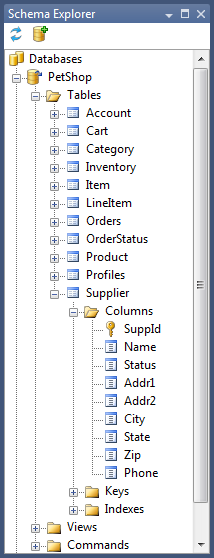
Schema Explorer is modeled on Object Explorer in SQL Server Management Studio, so you expand nodes to find schema objects such as tables, views and commands.
Opening Schema Explorer
In Visual Studio, select Generator > Schema Explorer. In the standalone Template Editor, select View > Schema Explorer.
Adding a data source
To add a database to Schema Explorer:
-
On the Schema Explorer toolbar, click Manage Data Sources (highlighted in green below).
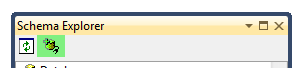
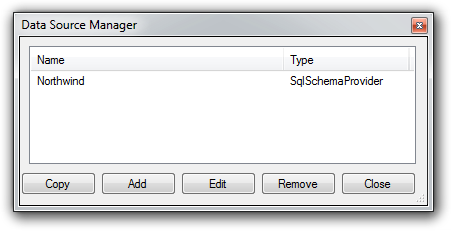
The Data Source Manager opens. Here you can add, edit and remove data sources.
-
Click Add. The Data Source dialog opens.
-
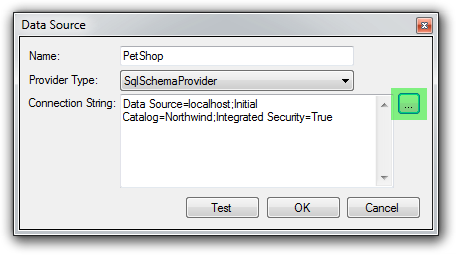
Enter a name for the data source, select a provider, and enter a connection string.
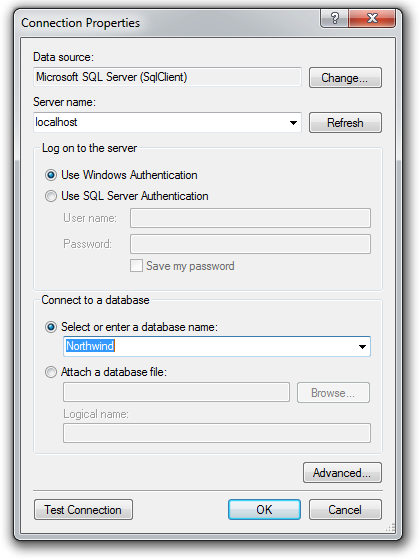
If the provider has a connection string designer, the ... button next to the connection string (highlighted in green above) is enabled. Click it to build the connection string in a dialog, such as the SQL Server connection dialog below. Otherwise, type the connection string yourself. For help, see Configuring and troubleshooting a schema provider.
-
To check the connection string, click Test.
-
Click OK to create the data source, then click Close to close the Data Source Manager.
Tip
You can also open the Data Source Manager from Generator > Manage Data Sources in Visual Studio.
In this section
- Managing extended properties: add, edit and remove extended properties on schema objects.