
ActiveSnippet Configuration
Before you can use a template as an ActiveSnippet, you must add it in the ActiveSnippet Configuration dialog, which maps an ActiveSnippet to a CodeSmith Generator template. In this dialog you can view, add, edit and remove ActiveSnippets.
To open it, select Generator > ActiveSnippet Configuration in Visual Studio.
Adding an ActiveSnippet
- Click Add.
- In the template chooser, browse to the template you want to use as an ActiveSnippet.
- Fill in at least the Template Options tab. The other tabs are optional.
Template Options tab
This tab maps the ActiveSnippet to its template. It's required so you can use the template from Visual Studio.
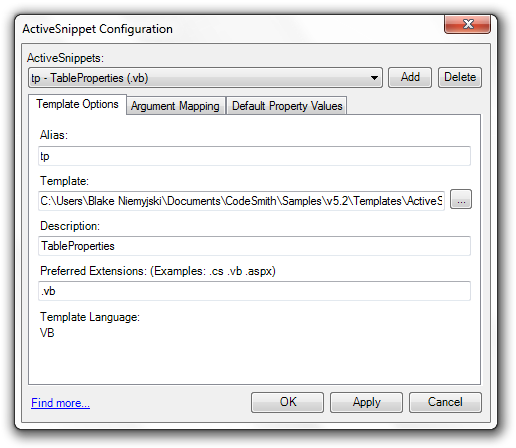
| Option | Description |
|---|---|
| Template | The full path to the template. |
| Alias | The short name you type to run the ActiveSnippet. |
| Description | A friendly description of the ActiveSnippet. It's shown in the usage information. |
| Target Extensions | The template's target language. Generator uses it as a hint when several ActiveSnippets have the same name. |
| Template Language | The output language of the selected template. |
Argument Mapping tab
You don't have to pass every template property as an argument. On this tab you choose which properties become the ActiveSnippet's arguments, and in what order.
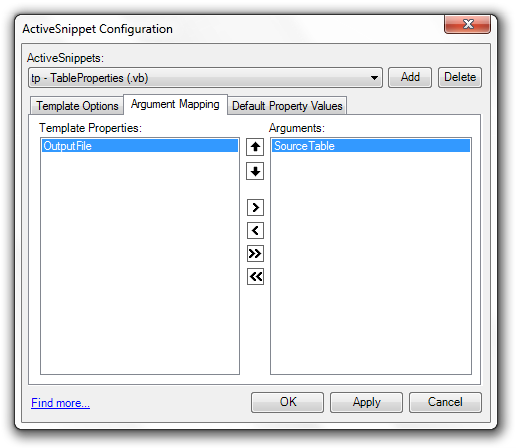
| Element | Description |
|---|---|
| Template Properties | All of the template's properties. |
| Arguments | The arguments you must pass when you use the ActiveSnippet. |
Use the arrow buttons between the lists to move properties to and from the Arguments list. Use the up and down arrows to set the order of the arguments.
Default Property Values tab
This tab shows all of the template's properties, so you can enter default values for them.
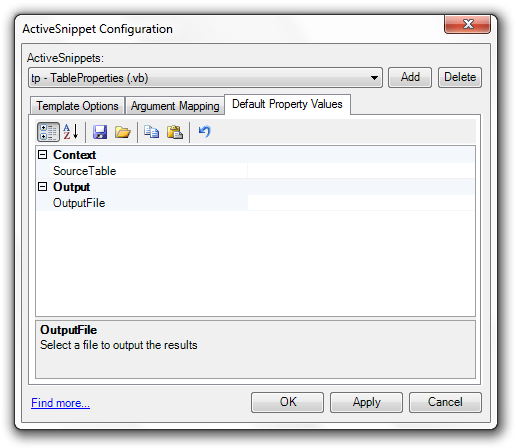
Warning
Don't enter a default value for a property that you want to pass as a required ActiveSnippet argument.