
Inspecting the generated solution
By default, the QuickStart opens the generated solution in Visual Studio. If it doesn't, open the solution yourself: it's in the folder you set in the QuickStart's Location property.
Build the solution to generate the code.
CodeSmith Generator generates the code with the Entities.csp Generator project file. The QuickStart created this file with your settings from the previous step. If you haven't configured the file yet, Generator works out which business object types (such as Criteria, EditableRoot and EditableRootList) to generate from your database relationships.
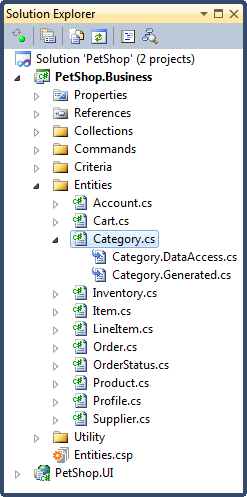
The generated code is organized in these folders:
| Folder | Contains |
|---|---|
| Collections | The collection (list) business objects. |
| Commands | The command objects. |
| Criteria | The criteria classes. |
| Entities | The business objects that aren't collections. |
| Utility | Utility classes the generated code uses. |
Note
In Visual Basic, click Show All Files in Solution Explorer to see the partial class files.
Partial classes
Take the Category business object, shown above. It's made up of several files. They're partial classes, which let each file handle a different responsibility of the business object:
| File | Editable | Contains |
|---|---|---|
Category.cs |
Yes | Your custom code. |
Category.DataAccess.cs |
No | The data access implementation. |
Category.Generated.cs |
No | Properties, factory methods and required rules. |
Note
If you generate with an Object Factory data access implementation, the DataAccess partial class isn't generated.
Next, change the type of business object Category is generated as: Configuring business object types.