
Manage Outputs
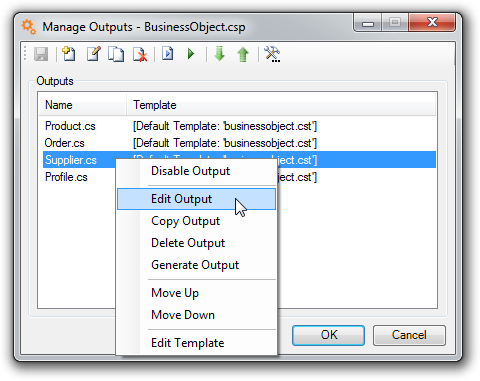
The Manage Outputs dialog is where you add, edit and delete the outputs of a CodeSmith Generator project. You don't need to open Generator to use it: right-click a project file in File Explorer or Visual Studio and select Manage Outputs.
Tip
Right-click an output to see the menu shown above, or double-click an output to edit it.
Dialog options
A project needs at least one output.
| Option | What it does |
|---|---|
| Outputs | Lists the outputs configured in the project. An output that doesn't specify a template uses the project's default template. |
| Add | Opens the Add Output dialog, where you add an output that uses a template you choose or the default template. See Adding and editing outputs. |
| Edit | Opens the Edit Output dialog, where you change the output's options or template properties. See Adding and editing outputs. |
| Copy | Copies the selected output. This is useful when you create many outputs from the same template that differ in only one value: copy the output, then change that one property. |
| Delete | Deletes the output from the project. |
| Generate Selected | Generates the selected output. |
| Generate | Generates all of the project's outputs. This is the same as Generate Outputs. |
| Project Options | Opens the Project Options dialog. |
| OK | Saves your changes. |
| Cancel | Discards your changes and closes the dialog. |
Adding and editing outputs
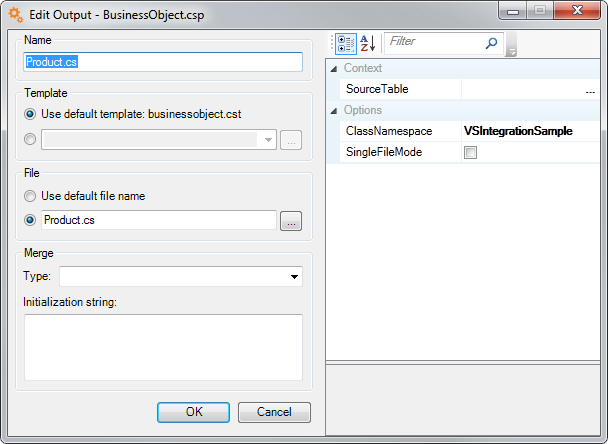
To edit an output, click Edit on the Manage Outputs toolbar or double-click the output. The Add Output and Edit Output dialogs have the same layout:
Template
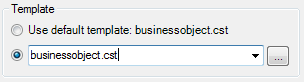
If the project has a default template, you can select Use default template to use it. Otherwise, choose the template to generate the output from.
File
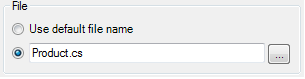
Enter the name of the output file. By default, the name comes from the template.
Note
If the template doesn't produce an output file, this field is ignored.
Merge (optional)
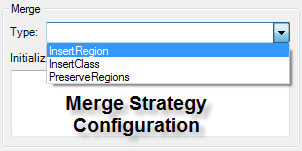
If the template uses a merge strategy, such as InsertRegion or PreserveRegions, select it here and enter its settings.
Properties
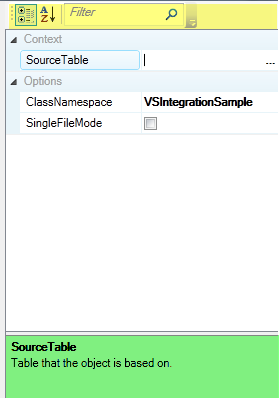
The right-hand pane is the template's property sheet. Fill in the values the template needs to run. The toolbar at the top (highlighted in yellow) works like the toolbar in the Properties window, and the description of the selected property appears at the bottom.
Warning
If any required properties are missing, you get an error when you try to save the output.