
Template Navigation
The navigation bar, Go To Definition, View Code and Go To Line make it quick to move around your templates.
| Feature | How to use it |
|---|---|
| Navigation bar | Pick a type or member from the lists at the top of the document. |
| Go To Definition | Right-click an identifier and select Go To Definition, or press F12. |
| View Code | Right-click in the template document and select View Code, or press F7. |
| Go To Line | Select Edit > Go To, or press Ctrl+G. |
Navigation bar
The navigation bar at the top of the template document lists the types and members in the current template. Types are in the list on the left, and members are in the list on the right.
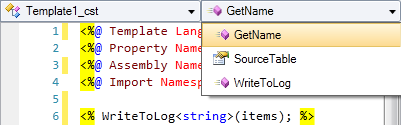
When you select a type or member, the cursor moves to its first line. The lists also update as you move the cursor, so they always show where you are.
Go To Definition
Go To Definition takes you to the place where an identifier, such as a class, method, property or variable, is defined. You don't need to search or scroll through the template to find it.

To use it, right-click an identifier and select Go To Definition, or press F12.
View Code
View Code opens the code-behind file or partial class that's set in the CodeTemplate directive's Src attribute. You can jump to the code-behind without looking for it in Template Explorer.
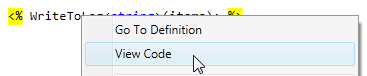
To use it, right-click anywhere in the template document and select View Code, or press F7.
Go To Line
Go To Line jumps to a line number in the template document. It's handy when you're fixing an error and know which line it's on.
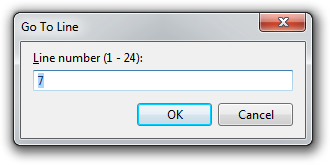
To use it, select Edit > Go To, or press Ctrl+G.