Developing using a Generator Map
When you write templates, you often need to look up a value based on some other information, such as the C# type for a database column. CodeSmith Generator maps handle these lookups for you. This page describes the Map directive and the map API, then walks through an example.
The Map directive
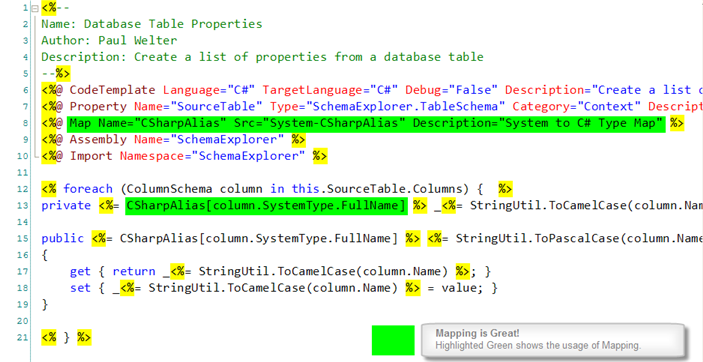
To use a map in a template, declare it with a Map directive. This directive adds a template property of type MapCollection, named CSharpAlias, and fills it with the values from the System-CSharpAlias.csmap map file:
<%@ Map Name="CSharpAlias" Src="System-CSharpAlias" Description="System to C# Type Map" %>
Note
Generator looks for map files in the template's folder and in the Generator Maps folder (Documents\CodeSmith Generator\Maps).
Map directive attributes
| Attribute | Required | Description |
|---|---|---|
Name |
Yes | The name you use for the map in your code. |
Src |
Yes | The file name of, or path to, the map file. You don't need to include the file extension. |
Description |
No | Text shown at the bottom of the property sheet when the property is selected. |
Reverse |
No | Swaps the keys and values, so you can look up a key from its value. |
Default |
No | What to do when a key isn't found. If True, a default value is returned when the key isn't found. |
Using maps from code
You can also use maps without a Map directive, by loading a MapCollection in code. Load the map by name; Generator looks for it in the same folders as for the Map directive.
MapCollection list = MapCollection.Load("System-CSharpAlias.csmap");
list.ReturnKeyWhenNotFound = true;
Response.Write(list[column.SystemType.FullName]);
This does the same as the Map directive in the example below.
Reversing a map
To load a map with its keys and values swapped, call the MapCollection.Load(string mapName, bool reverseMap) overload:
MapCollection list = MapCollection.Load(mapName, true);
Debug.Assert(list[myValue] == myKey);
For the full API, see the CodeSmith Generator API documentation.
Example: replacing a switch statement with a map
A common example is mapping SQL Server data types to .NET types. Without maps, you'd write a method with a long switch (or Select Case) statement:
public string GetFrameworkType(DataObjectBase column)
{
   switch(column.DataType)
   {
      case DbType.AnsiString:
      case DbType.AnsiStringFixedLength:
      case DbType.String:
      case DbType.StringFixedLength:
         return "String";

      case DbType.Binary:
         return "Byte[]";

      case DbType.Boolean:
         return "Boolean";

      case DbType.Byte:
         return "Byte";

      case DbType.Currency:
      case DbType.Decimal:
      case DbType.VarNumeric:
         return "Decimal";
    }
}
A map needs less code for the lookup, and you can share it between templates.
1. Create the map file
Open the Map Editor and click New File.
2. Fill in the map
Enter a name and description for the map, then enter the keys and values from the method above. The result looks like this:
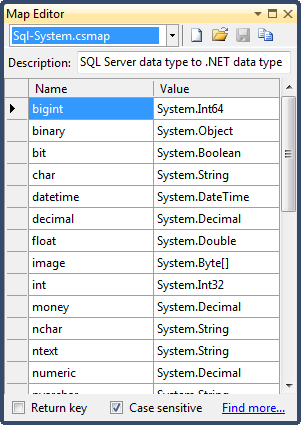
Note
This map file ships with Generator.
3. Update the template
-
Remove the method with the
switchstatement. When you build the template, every place that called the method now shows an error, so you can use the Error List to find and update them. -
Add a Map directive to register the map:
<%@ Map Name="CSharpAlias" Src="System-CSharpAlias" Description="System to C# Type Map" %> -
Replace each call to the old method with a lookup in the map, using the map's name like a collection. For example, use
CSharpAlias[column.SystemType.FullName]where the template used to callGetFrameworkType(column).
In the template below, the Map directive and the map lookup are highlighted in green.