
Managing Extended Properties
Extended properties let you store your own metadata on database objects, such as descriptions or anything else that helps drive your code generation. You can add, edit and remove them directly in Schema Explorer.
To learn how to use extended properties in your templates, see Using extended properties.
Important
Extended properties are managed by the schema provider you're using. If the provider doesn't support extended properties, adding, removing or saving one throws a NotSupportedException.
Opening the Extended Property Editor
You can open the Extended Property Editor for any schema object except folders.
-
Open Schema Explorer. In Visual Studio, select Generator > Schema Explorer. In the standalone Template Editor, select View > Schema Explorer.
-
Expand the nodes until you find the schema object you want. For example, to edit the
AccountIDcolumn of theAccounttable, expand Account > Columns. -
Right-click the object and select Extended Properties.
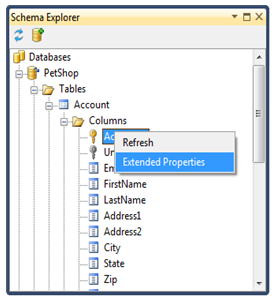
The Extended Property Editor opens. Here you can view, add, edit and remove the object's extended properties.
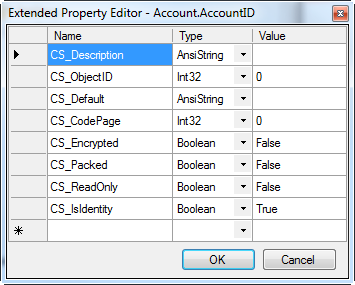
Built-in extended properties
The editor may already list some extended properties, usually starting with CS_ or MS_. These are managed by the underlying schema provider.
Note
Extended properties that start with CS_ or MS_ may be read-only. You can't modify or remove read-only extended properties.
When you use SQL Server, CS_Description is an alias for MS_Description, so updating CS_Description updates MS_Description.
Adding an extended property
- In the first empty row, at the bottom of the list (marked with
*), type a name for the extended property. - Select the data type of the extended property.
- Enter its value.
- Click OK to save your changes.
Editing an extended property
To change an extended property that isn't read-only, edit the Value field in its row, then click OK.
Removing an extended property
Do one of the following, then click OK:
- Right-click the row and select Delete.
- Click the row selector (the first column) and press Delete.
Saving or discarding changes
Click OK to save your changes to the extended properties, or Cancel to discard them.