
Activation in CodeSmith 5.x
CodeSmith 5.x activates the same way as current versions of Generator, but its dialogs, buttons and starting points are different. Use this page if you're running 5.x. For current versions, see Product activation and deactivation. The rest of the 5.x documentation is in the archive as a PDF.
- You must activate CodeSmith on each computer where you use it. Activation issues a unique license code to the computer that permanently unlocks it.
- By default, you can activate CodeSmith on three computers. To get more activations, email support@codesmithtools.com.
- A new installation has a trial period to register the product, then a grace period to complete activation. The activation dialog shows how many days are left.
The first time you launch CodeSmith Explorer, CodeSmith Studio or Visual Studio with CodeSmith installed, CodeSmith asks for registration information.
Start a trial
-
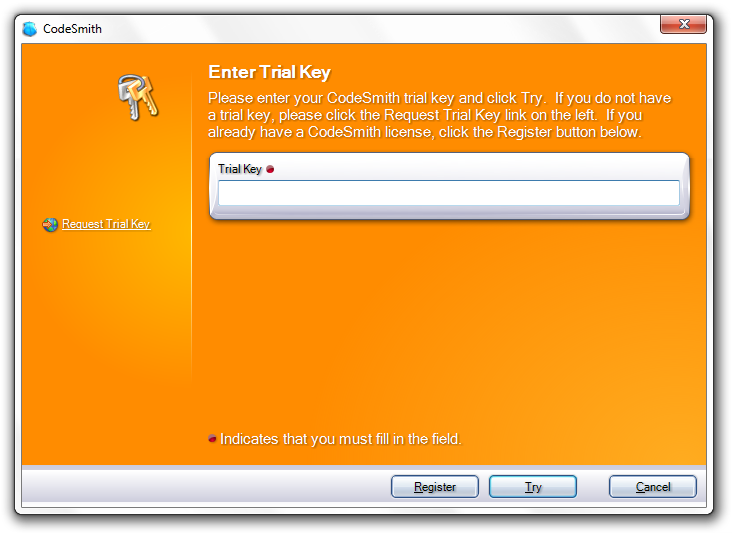
Launch CodeSmith Explorer, CodeSmith Studio or Visual Studio. The Enter Trial Key dialog opens.
-
Enter your trial key. If you don't have one, click Request Trial Key on the left side of the dialog.
-
Click Try.
If you already own a license, click Register instead and follow Register and activate a license.
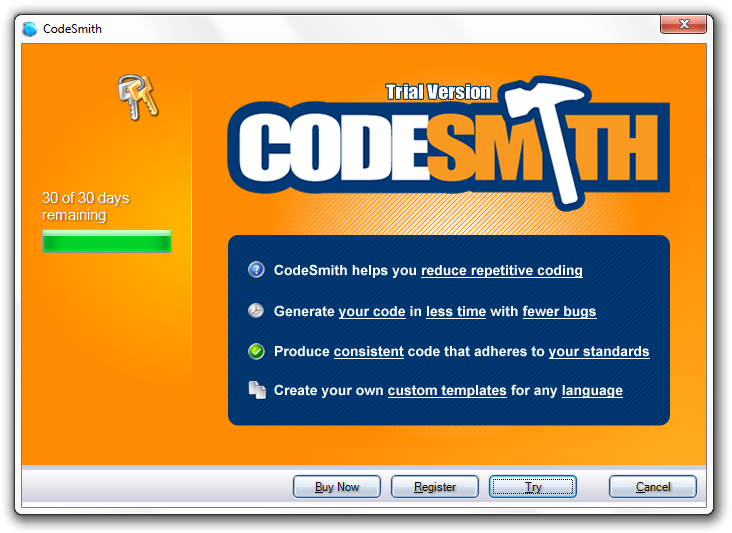
While you're in trial mode, CodeSmith shows how many trial days remain:
| Button | What it does |
|---|---|
| Register | Returns to registration so you can enter a serial number. |
| Buy Now | Opens information about purchasing CodeSmith. |
| Try | Continues your CodeSmith session. |
| Cancel | Ends your CodeSmith session. |
Register and activate a license
-
In the Enter Trial Key dialog, click Register.
-
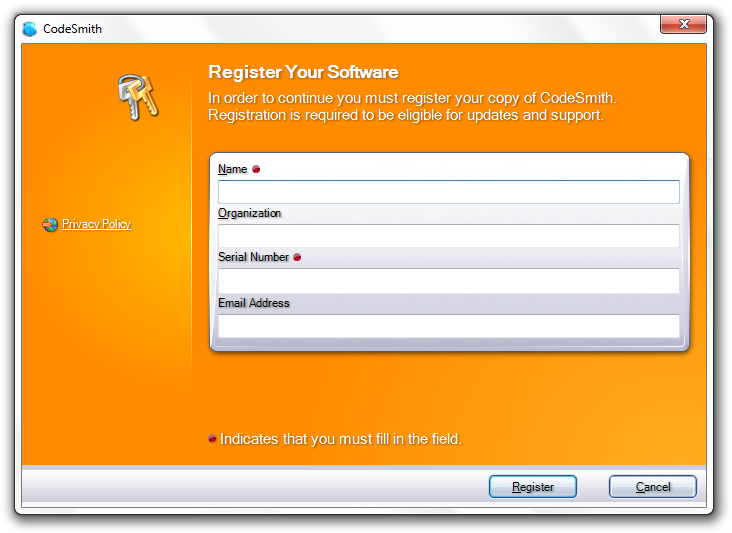
In Register Your Software, enter your name, organization, email address and the serial number you received when you purchased.
-
Click Register.
Note
Lost your serial number, or need a trial key? Contact support.
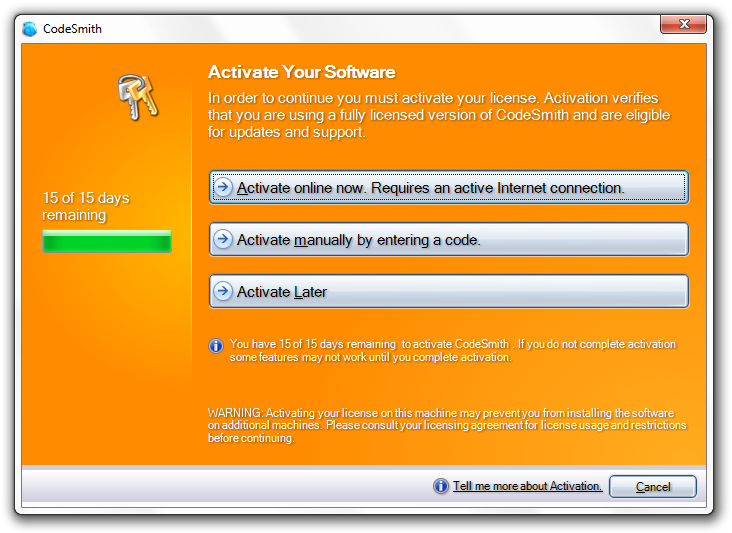
If CodeSmith can't activate automatically, it shows the Activate Your Software dialog:
| Option | What it does |
|---|---|
| Activate online now | Contacts the CodeSmith licensing servers and activates this installation automatically. Requires an internet connection. If you reach the internet through a proxy server, click the Proxy Info link to enter the proxy address, user name and password. |
| Activate manually by entering a code | Activates by email or phone. See Activate manually. |
| Activate Later | Continues without activating. You can activate later. |
Activate manually
-
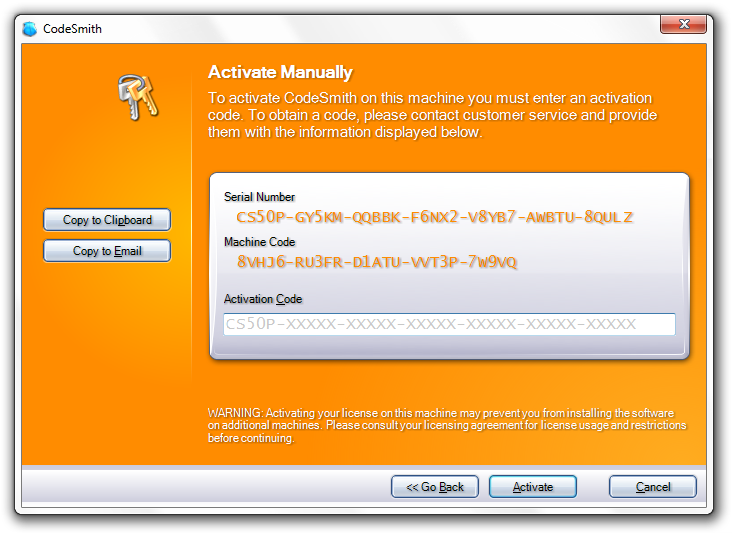
Click Activate manually by entering a code. CodeSmith shows your serial number and a machine code that it generates at random.
-
Send the serial number and machine code to support@codesmithtools.com. Either:
- click Copy to Clipboard and paste the information into an email, or
- click Copy to Email to open an email that already contains it.
-
When you receive your activation code by email, enter it in Activation Code and click Activate.
Note
The serial number and machine code in the screenshot are examples. Always send the information shown on your own computer.
Deactivate a license
Deactivate CodeSmith to move your license to a different computer. You don't need to deactivate to reinstall on the same computer if you haven't changed its hardware.
Important
If you're upgrading from CodeSmith Standard to CodeSmith Professional, deactivate the Standard license first, from the About dialog in CodeSmith Explorer.
-
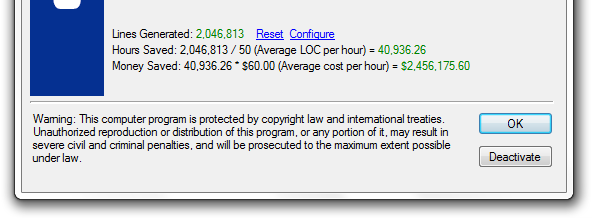
In CodeSmith Explorer, open the About CodeSmith dialog.
-
Click Deactivate.
-
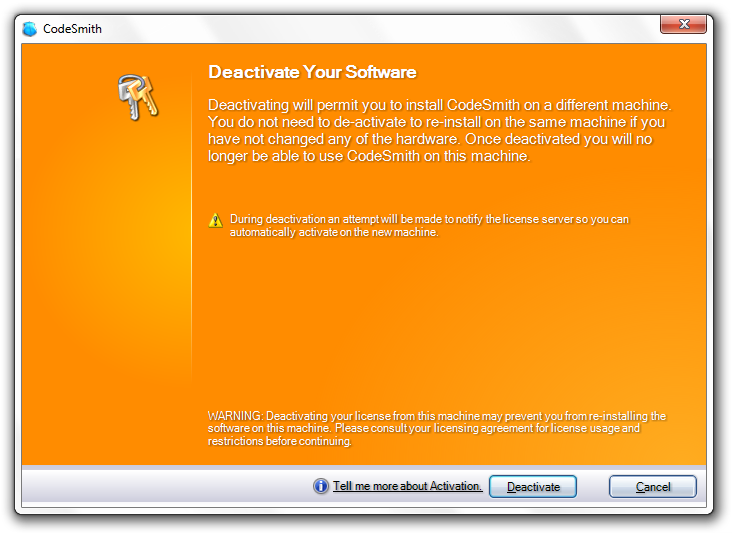
In Deactivate Your Software, click Deactivate.
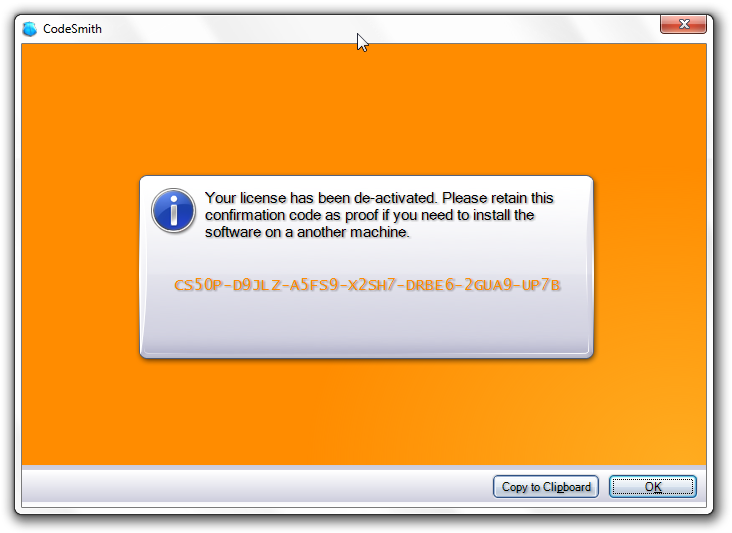
CodeSmith shows a confirmation code as proof of deactivation:
Important
The confirmation code is for your records only. To activate CodeSmith on another computer, use your original serial number.
Activation problems
If activation fails, contact support and include your serial number, your operating system, the exact CodeSmith version from the About dialog, and the text of any error message.