
Using the QuickStart template
The CSLA templates aren't installed with CodeSmith Generator. If you haven't already, download and extract them, for example into Documents\CodeSmith Generator\Templates\Csla.
-
Open Template Explorer to see the templates you can run.
-
Expand the folder you extracted the CSLA templates into, for example My Templates > Csla.
-
Double-click
QuickStart.cst, or right-click it and select Execute. -
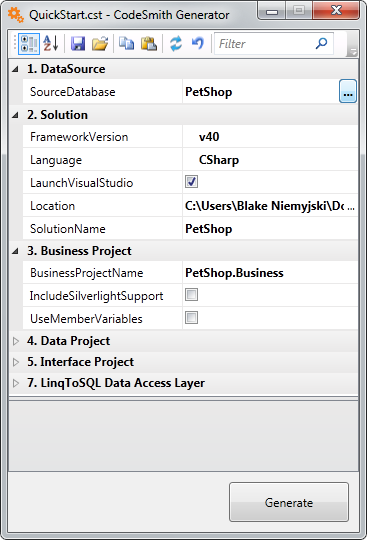
Choose a source database: click the ... button of the
SourceDatabaseproperty and select your database. This tutorial uses the PetShop database.The QuickStart fills in the other properties with default settings.
-
Change the settings to meet your requirements. To learn what each property does, see the QuickStart template.
-
Click Generate.
Next, explore the Visual Studio solution the QuickStart created: Inspecting the generated solution.