
Tab Groups and Split Windows
The Template Editor gives you two ways to edit in more than one place at a time:
- Tab groups show two or more files side by side.
- Split windows show two panes of the same file.
Tab groups
To create a tab group, do one of the following:
- From the Window menu, select New Horizontal Tab Group or New Vertical Tab Group.
- Drag a document's tab down into the editing area and drop it. From the menu that appears, choose a new horizontal or vertical tab group.
Either way, the active tab becomes the first tab in the new group.
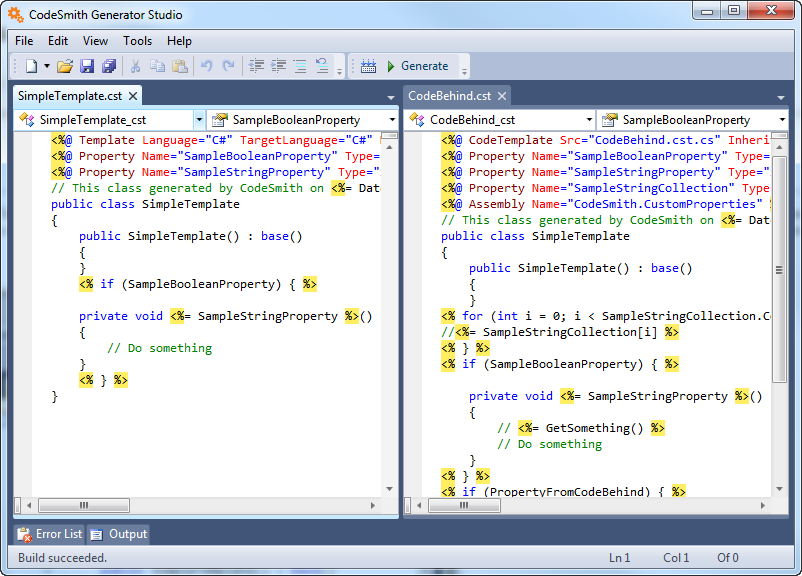
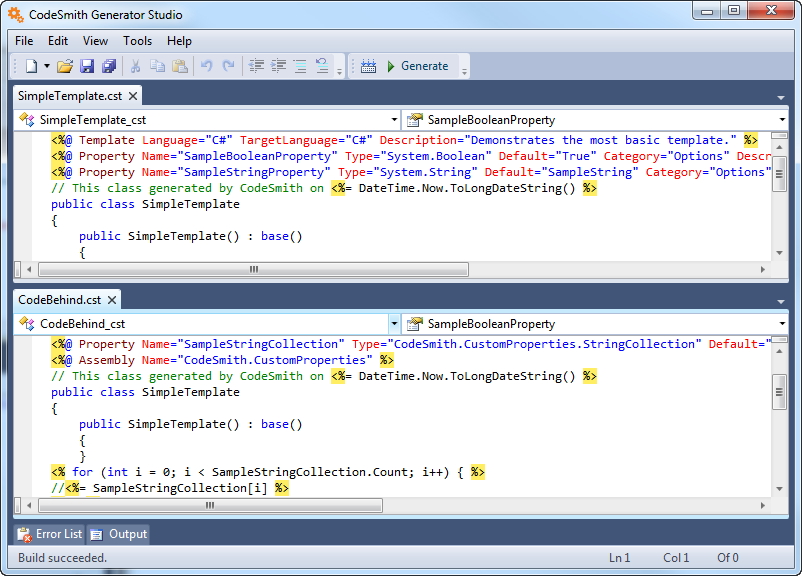
- To move a tab to another group, drag and drop it.
- To add more groups, repeat the steps above. All tab groups must be the same type: you can't mix horizontal and vertical groups.
- When you close or move the last tab in a group, the group is removed.
Split windows
To split a window, drag the splitter handle at the top of the vertical or horizontal scroll bar (highlighted in green below) downward. The window now has two panes on the same file.
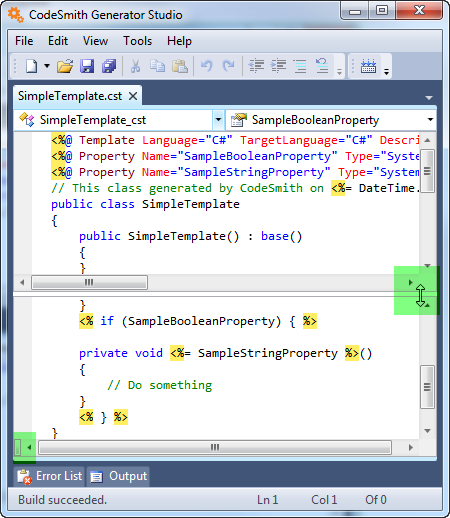
You can scroll and edit each pane separately. Because both panes show the same file, a change in one pane appears in the other straight away.