
Template Editor User Interface
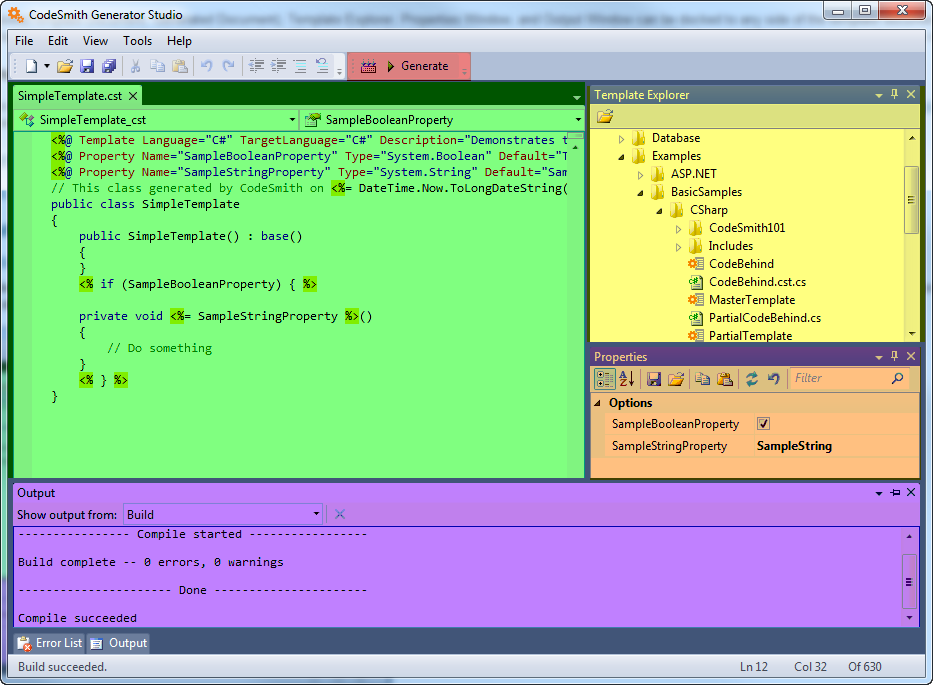
The CodeSmith Generator Template Editor is made up of several windows, each with its own purpose. The screenshot below highlights the main ones in color.
| Element | Highlighted in | Purpose |
|---|---|---|
| Toolbar | Red | Build and generate the current template. |
| Template documents | Green | Edit templates and view generated code. |
| Template Explorer | Yellow | Browse your templates. Double-click a template to open it in the editor. |
| Properties window | Orange | View and set the current template's properties, like the property sheet you get when you execute a template from Template Explorer. |
| Output window | Purple | Show status messages, such as build results. |
| Error List | Not shown | Show errors and warnings found while you edit or build a template. |
Arranging windows
You can dock Template Explorer, the Properties window and the Output window to any side of the template documents, or let them float. Multiple floating windows can be docked to one another.
To auto-hide a docked window, click the pin button in its upper-right corner. When you point at an auto-hidden window, it slides out and covers the other windows until you move away.
Menus
In Visual Studio, Generator's windows and commands are on the Generator menu, including Schema Explorer, Template Explorer, the Map Editor, Manage Data Sources and ActiveSnippet configuration. In the standalone Template Editor, use the View menu to show windows such as Template Explorer and Schema Explorer.
Toolbar
The toolbar appears only when a template document has the focus.
| Button | Name | Shortcut | What it does |
|---|---|---|---|
 |
Build | F6 | Compiles the current template. The Output window shows the result. |
 |
Generate | F5 | Runs the current template with the values from the Properties window and shows the result in a generated document. |
Output window
Generator uses the Output window to send you status messages, such as the results of a build or of generating a template.
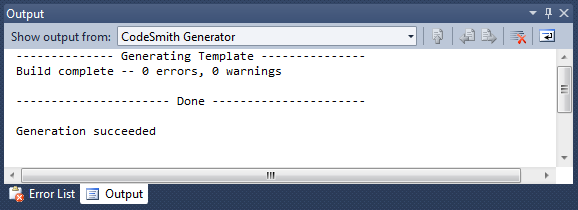
Use the list at the top of the Output window to switch between the Build and Debug panes.