Product activation and deactivation
You must activate CodeSmith Generator on each computer where you use it. Activation issues a unique license code to the computer that permanently unlocks Generator. It's designed to be painless and to never lock you out of your legitimate use of the product.
- By default, you can activate Generator on three computers. To get more activations, email support@codesmithtools.com.
- Generator has a 30-day trial period. To start the trial, you need a trial key (see Start a trial).
Tip
Using CodeSmith 5.x? Its dialogs are different. See Activation in CodeSmith 5.x.
The first time you launch Template Explorer or the Template Editor, Generator asks for registration information.
Warning
When you enter a trial key, serial number or activation code, make sure it has no extra punctuation and no leading or trailing spaces.
Start a trial
-
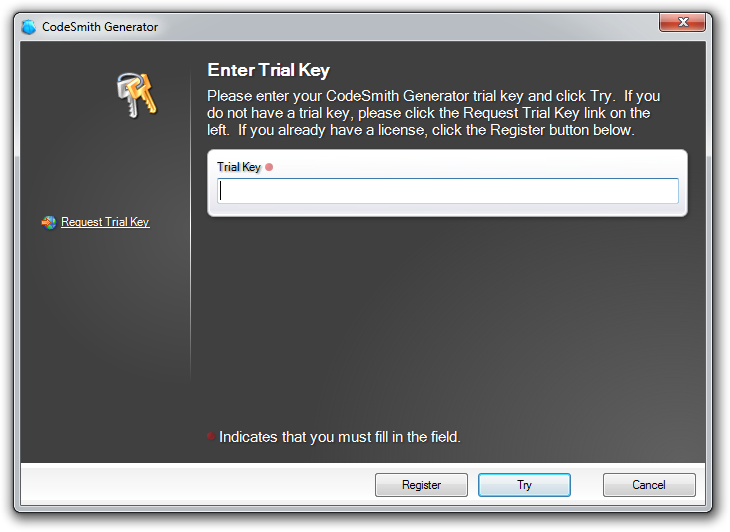
Launch Template Explorer or the Template Editor. The Enter Trial Key dialog opens.
-
Enter your trial key. If you don't have one, click Request Trial Key on the left side of the dialog.
-
Click Try.
If you already own a license, click Register instead and follow Register and activate a license.
While you're in trial mode, Generator shows the Trial Mode dialog with the number of trial days remaining:
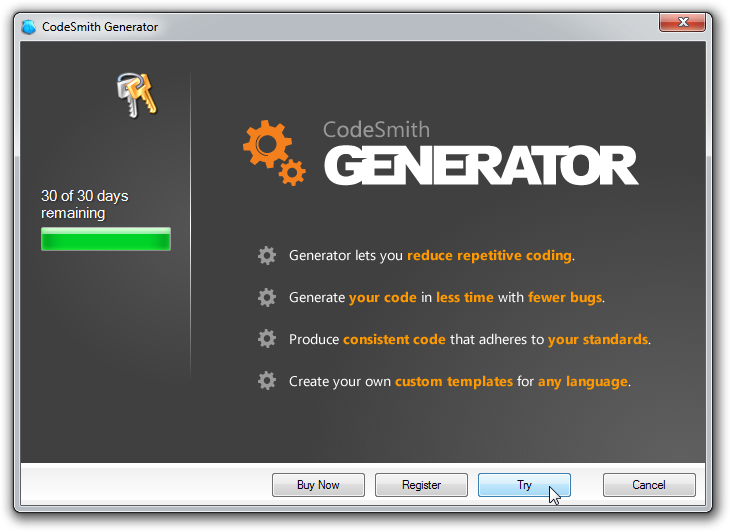
| Button | What it does |
|---|---|
| Buy Now | Opens information about purchasing Generator. |
| Register | Returns to registration so you can enter a serial number. |
| Try | Continues your Generator session. |
| Cancel | Ends your Generator session. |
Register and activate a license
Follow these steps if you have purchased Generator.
-
In the Enter Trial Key dialog, click Register.
-
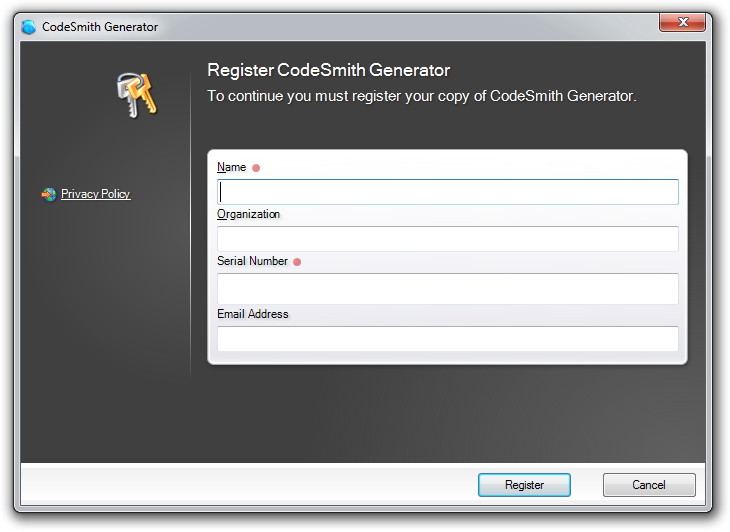
Enter your name, organization, email address and the serial number you received when you purchased.
-
Click Register. If activation succeeds, the dialog closes and you're done.
Note
Lost your serial number? Contact sales and include your order number if you have it.
If Generator can't connect to the internet to activate, it shows the Activate CodeSmith Generator dialog:
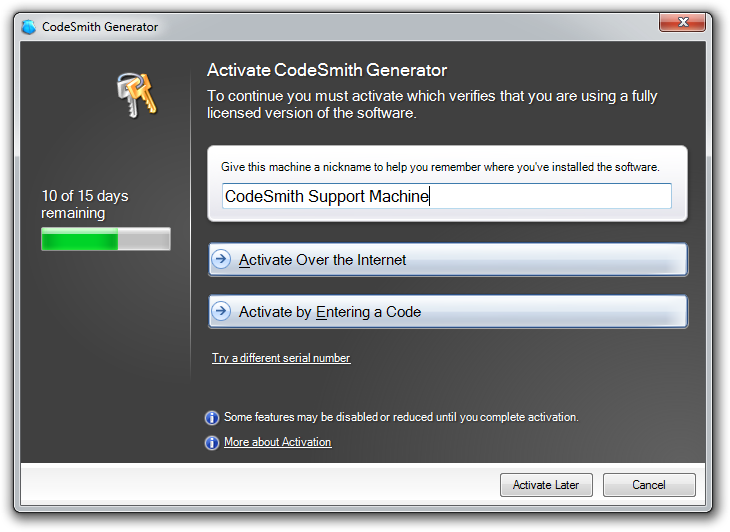
| Option | What it does |
|---|---|
| Activate Over the Internet | Contacts the CodeSmith licensing servers and activates this installation automatically. If you reach the internet through a proxy server, click the Proxy Info link to enter the proxy address, user name and password. |
| Activate by Entering a Code | Activates manually, by email or phone. See Activate offline. |
| Activate Later | Continues without activating. You can activate later. |
| Cancel | Cancels activation. |
Activate offline
-
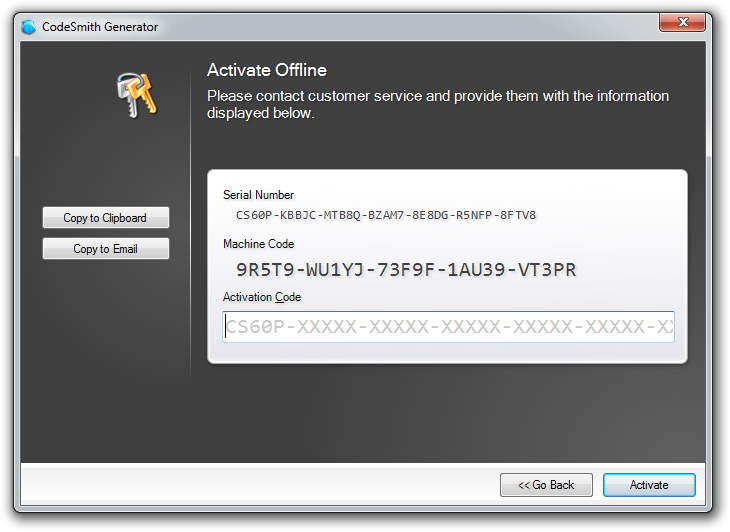
In the Activate CodeSmith Generator dialog, click Activate by Entering a Code. Generator shows your serial number and a machine code that it generates at random.
-
Send the serial number and machine code to support@codesmithtools.com. Either:
- click Copy to Clipboard and paste the information into an email, or
- click Copy to Email to open an email that already contains it.
-
When you receive your activation code by email, paste it into Activation Code and click Activate.
Note
The serial number and machine code in the screenshot are examples. Always send the information shown on your own computer.
Deactivate a license
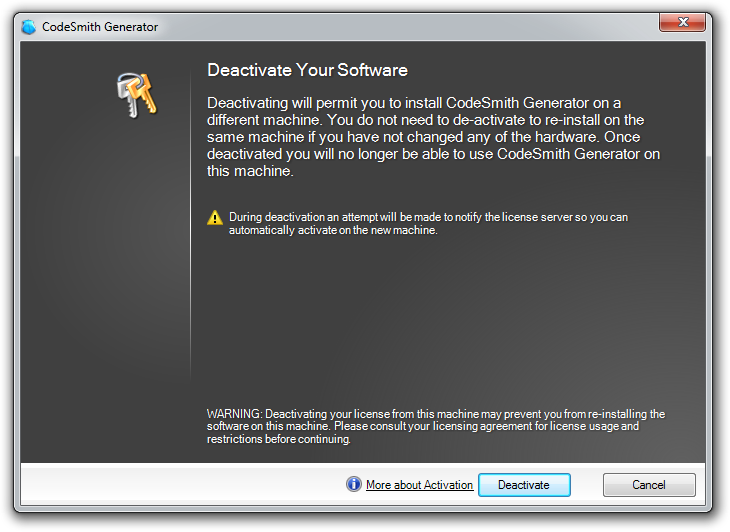
Deactivate Generator to move your license to a different computer. You don't need to deactivate to reinstall on the same computer if you haven't changed its hardware.
-
Open the About CodeSmith Generator dialog.
-
Click Deactivate. The Deactivate Your Software dialog opens.
-
Click Deactivate, then click Yes to confirm.
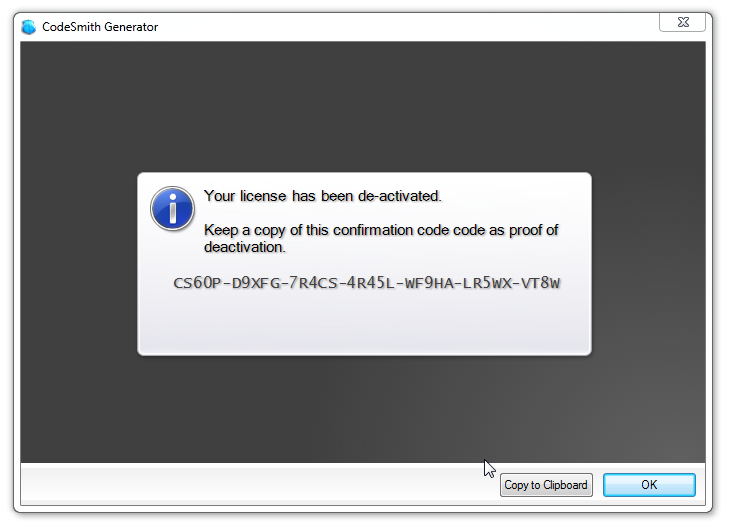
Generator shows a confirmation code as proof of deactivation:
Important
The confirmation code is for your records only. To activate Generator on another computer, use your original serial number.
Note
Trial licenses don't show the Deactivate button.
Troubleshoot activation
If activation fails, contact support as soon as possible and include:
- The serial number you're activating (for example,
CSX0P-XXXXX...). - Your operating system (for example, Windows 11 64-bit).
- The exact version of Generator you installed (for example,
X.X.X.XXXXX). - The activation error details, collected as described below.
Copy the error details
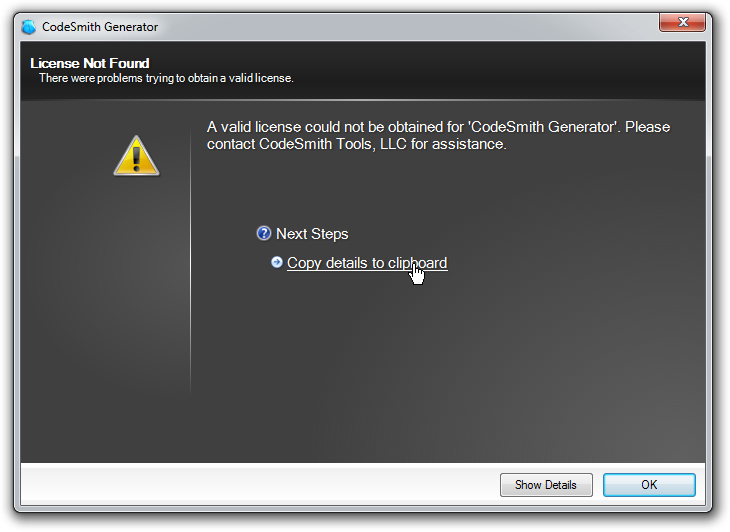
If a Validation Notice dialog appears, click the copy icon in its lower-left corner. This copies the dialog's details to the clipboard. Paste them into your email.
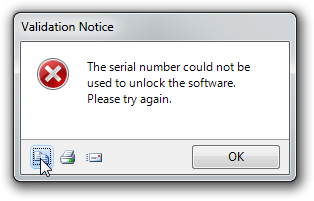
Then keep clicking Cancel in each dialog until the License Not Found dialog appears. Click Copy details to clipboard and paste those details into your email too.